Audience: Creators Status: User Guide
A show is a collection of episodes with its own page and web address. An episode is a single video, either uploaded ahead of time or streamed live and saved afterward. This guide covers creating and organizing both.
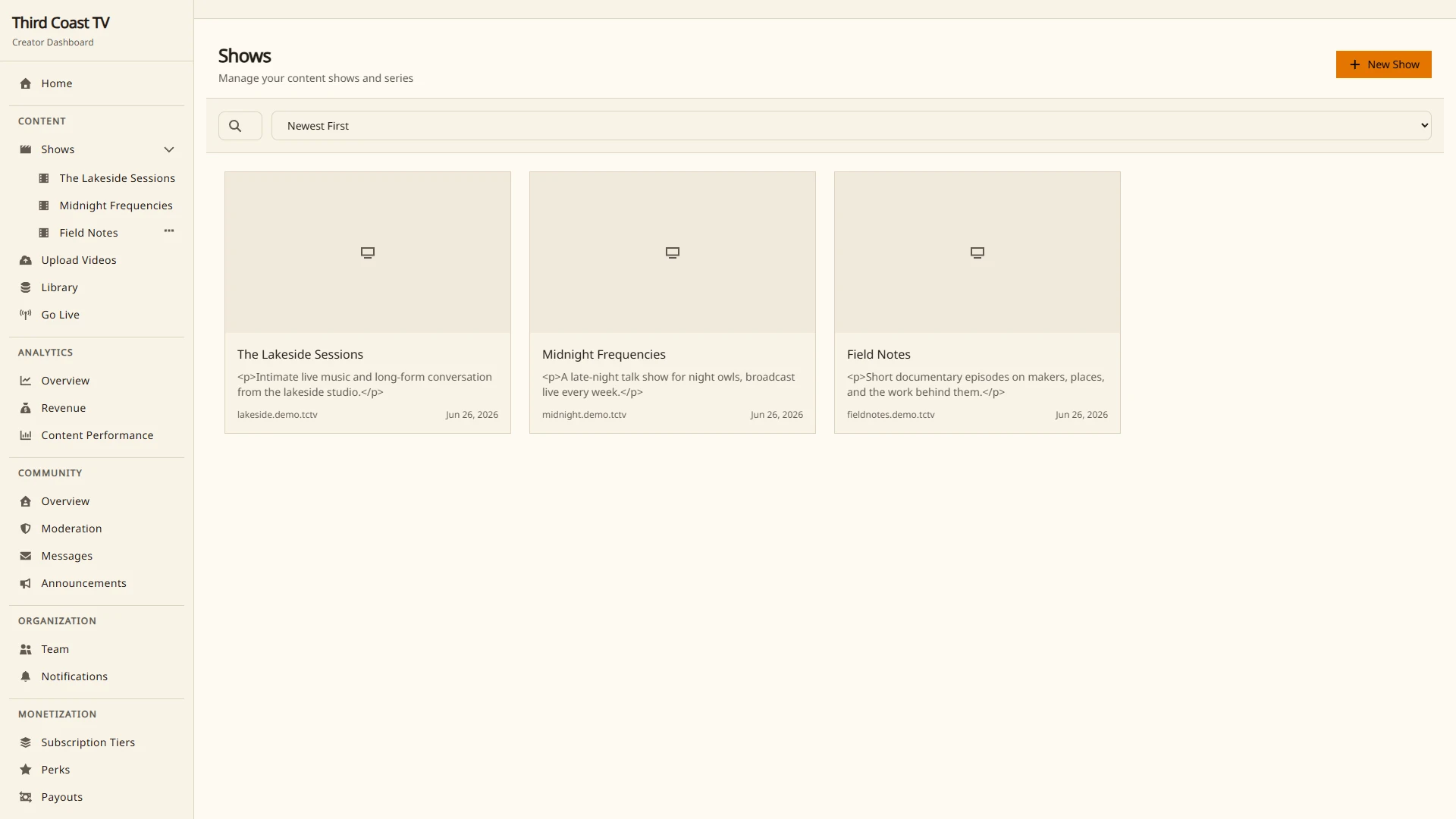
Shows
Creating a show
- Open Content → Shows in the sidebar.
- Select New show.
- Enter a title and description. You can edit both later.
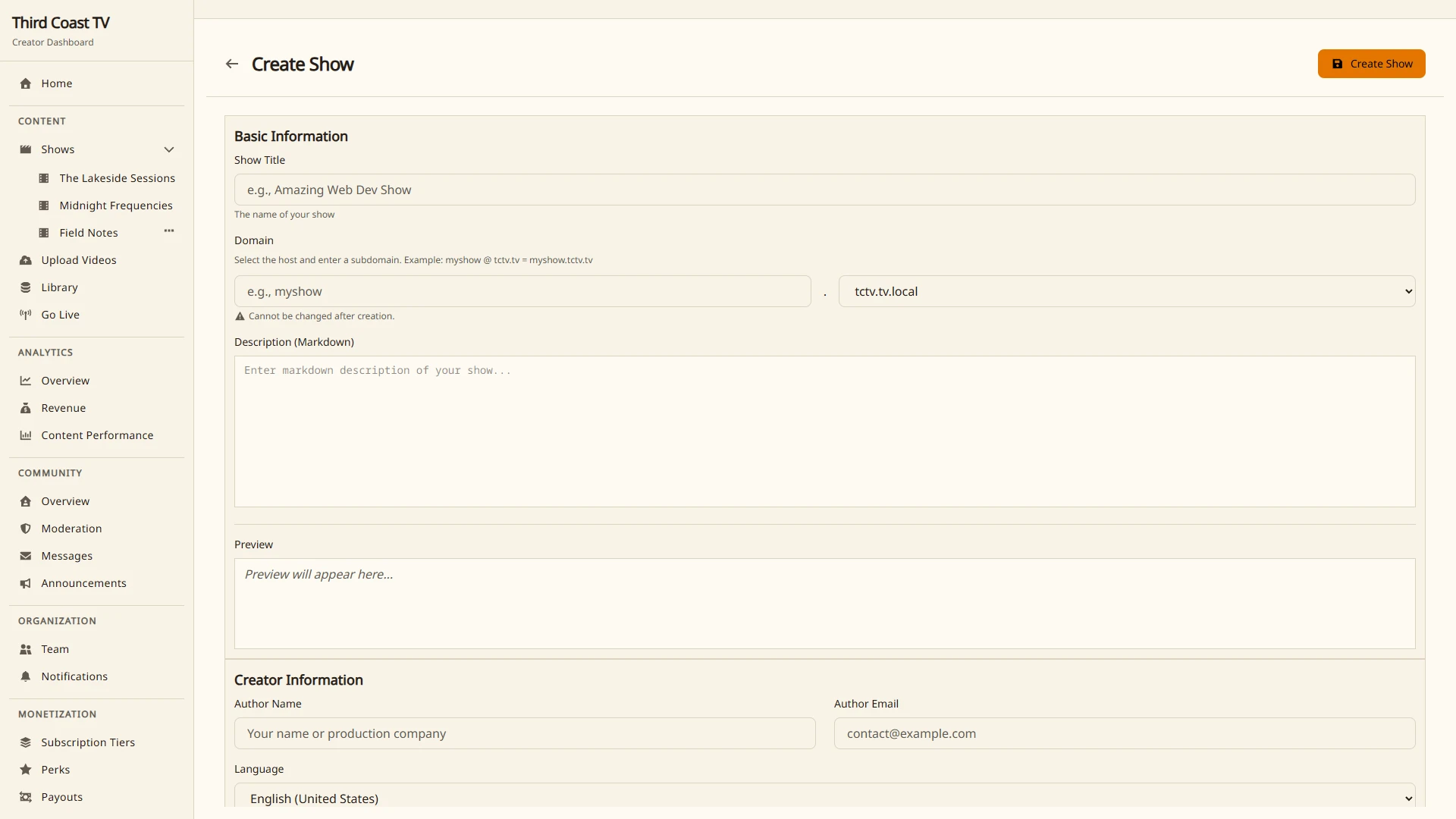
Your show is created with a web address generated from its title, for example yourshow.thirdcoast.tv. The address uses lowercase letters, numbers, and dashes, up to 40 characters. If the name is already in use, a number is added so the address stays unique.
Show settings
Open a show, then Edit to change its details:
- Title and description. Shown on your show page. The description supports Markdown.
- Author name and contact. Displayed as the show’s creator.
- Language. The primary language of the show.
- Default rating and content descriptors. Applied to new episodes unless an episode sets its own. See Content ratings.
Choosing how the show is organized
Under a show’s settings you pick a content organization style that shapes the show page:
- Seasons. Episodes are grouped into numbered seasons. Best for serialized shows.
- Absolute. One ongoing list numbered straight through, with no seasons. Best for a continuous catalog.
- Events. Organized around dated events. Best for live-first programming.
Layout and theme
Open Layout & Theme for a show to set its appearance:
- Dark mode. Automatic (follows the viewer’s device), Light, or Dark.
- Preset. A starting look for the page.
- Color overrides. Adjust individual colors to match your brand.
Custom domains
By default your show lives on a Third Coast TV address. You can also serve it on a domain you own. Custom domains are part of the higher plans; see the Pricing page for details. Once a custom domain is active it becomes the canonical address and other addresses redirect to it.
Episodes
Episode types
An episode holds one video. How that video gets there determines its type:
- Uploaded. You upload a finished file. See Uploading and Managing Video.
- Live recording. You stream live and the broadcast is recorded into the episode. See Live Streaming.
- No video yet. A placeholder episode you have created but not yet filled.
Creating and editing episodes
- Open Content → Shows, choose a show, then Episodes.
- Select New episode, or open an existing one to edit.
- Set the title, description, tags, thumbnail, rating, and access. Your work is saved as you go.
Each episode has a title, a description (Markdown), tags, an air date, a rating with content descriptors, and its access settings.
Drafts and publishing
New episodes are drafts. A draft is private and visible only to you and your team. When an episode is ready, publish it to make it visible according to its access settings.
- Draft. Hidden from your show page. Use this while you prepare an episode.
- Published. Visible to viewers, subject to its access mode.
For live episodes you can set a scheduled start time so your audience knows when to tune in. Publishing itself is a manual step; an episode does not appear until you publish it.
Seasons
If your show uses the Seasons organization style, you can group episodes into seasons.
- Open a show, then Seasons.
- Create a season with a number, title, and optional description and dates.
- Assign episodes to the season when you create or edit them.
Each episode has an episode number within its season. You can also set an optional absolute number that counts across the whole show, which is useful when you renumber seasons but want a stable running count.
Moving an episode
You can move an episode to a different show or season. The episode keeps its content and is renumbered to fit its new season. Open the episode and use Move to show.
Access control
Every episode has one or more access modes that decide who can watch. Set these per episode under its access settings.
| Mode | Who can watch | Notes |
|---|---|---|
| Public | Anyone | Shown in your show’s listings and feeds. |
| Unlisted | Anyone with the link | Hidden from listings and search. |
| Subscriber | Active subscribers | Any active subscription to your organization. |
| Tier-gated | Specific tiers | Choose which subscription tiers unlock it. |
| Perk-gated | Holders of a perk | Choose which perks unlock it. |
| Purchase | Buyers | A one-time purchase. Set a price. Can be permanent or a timed rental. |
| Purchase or subscriber | Buyers or subscribers | Either a purchase or an active subscription unlocks it. |
| Ticketed | Ticket holders | A paid live event: one ticket covers the broadcast plus a replay window. See Ticketed Events. |
To use the paid modes you first set up tiers and perks under Monetization, and connect payouts so you can be paid. See Pricing Your Content.
For purchase access you set a price, and optionally a rental window. With no rental window the purchase is permanent. With one, access lasts for that period after purchase.
Content ratings
Ratings tell viewers what to expect and power content filtering. You can set a default rating on the show, override it on a season, and override again on an individual episode. The most specific setting wins, so an episode rating overrides its season, which overrides the show.
Ratings
| Rating | Meaning |
|---|---|
| Y | For all children |
| Y7 | For children 7 and older |
| G | General audiences |
| PG | Parental guidance suggested |
| 14 | May be unsuitable for under 14 |
| MA | Mature audiences |
| R | Restricted |
| X | Adults only |
Content descriptors
Descriptors add detail about why a rating was given:
| Code | Meaning |
|---|---|
| D | Suggestive dialogue |
| L | Coarse language |
| S | Sexual situations |
| N | Nudity |
| V | Violence |
| FV | Fantasy violence |
Not every descriptor applies to every rating. The dashboard only offers the descriptors that are valid for the rating you choose:
- Y: no descriptors.
- Y7: FV.
- G: L, FV.
- PG: D, L, S, V, FV.
- 14: D, L, S, N, V, FV.
- MA, R, X: D, L, S, N, V.
Deleting shows and episodes
Deleting a show or episode removes it from your show page and from viewer access. Deletions are tracked, so removing content is deliberate and auditable. If an episode had a video, see Uploading and Managing Video for how to also remove the underlying video file and stop storage charges.