Audience: Creators Status: User Guide
A ticketed event lets you charge a single price for access to one live broadcast, plus a replay window afterward, without setting up an ongoing subscription tier. This guide covers what a ticket is, how to set one up, and where the revenue lands. For your ongoing membership tiers, see Pricing Your Content.
What a ticketed event is
A ticket grants one viewer paid access to a single live episode: the broadcast itself, plus a replay window afterward that you control. It is a one-time purchase, not a recurring charge, and it sits alongside your existing subscription tiers and pay-per-view episodes rather than replacing them.
Plan requirement
Ticketed events need a Standard plan or higher. If your plan does not include it, the « Ticketed Event » option will tell you to upgrade when you try to save it.
Setting up a ticketed event
- Open the episode you want to sell tickets for and make sure Live Episode is enabled. Ticketed access only applies to live episodes.
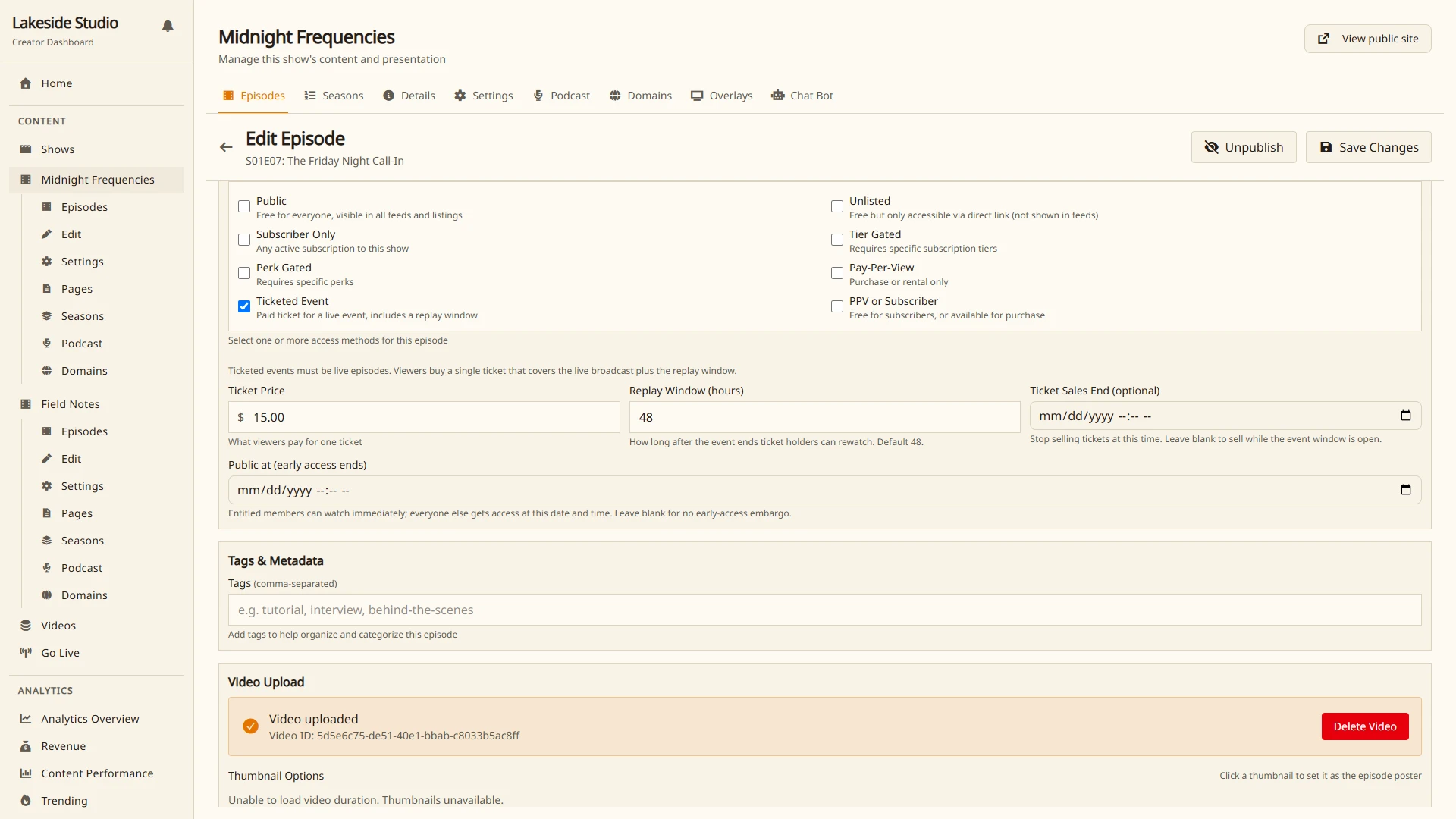
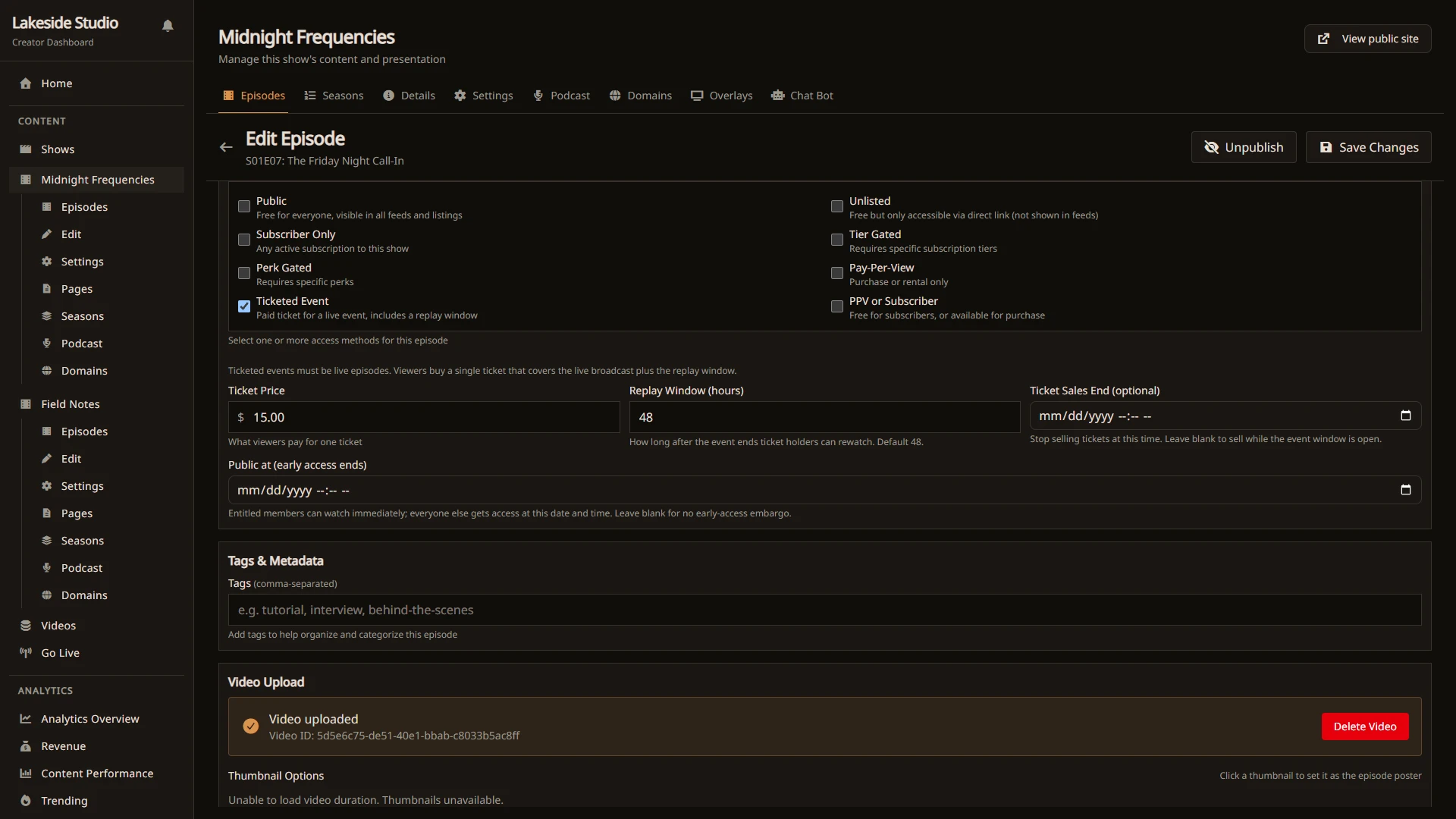
- In the Access Control section, check Ticketed Event alongside (or instead of) your other access modes.
- Set the Ticket Price, the amount a viewer pays for one ticket.
- Set the Replay Window (hours), how long after the event ends a ticket keeps granting access to watch it back. This defaults to 48 hours and can be anywhere from 1 hour to a year (8760 hours), set per event.
- Optionally set Ticket Sales End to stop selling new tickets at a specific time. Leave it blank to keep selling while the event window is open.
- Save the episode.
A ticket price is required before the episode will save with ticketed access enabled.
If you reschedule the event, tickets already sold follow the new date automatically. Early buyers keep their access without doing anything.
What viewers see
On the episode page, viewers who do not already hold a ticket see a paywall with a Buy Ticket button showing the price, along with a countdown to the scheduled start once one is set. Buying a ticket takes them through Stripe Checkout, the platform’s secure checkout. Access starts at purchase: ticket holders can open the event page right away, watch the broadcast live, and watch it back for the replay window afterward. There is a single price per ticket and no capacity limit in this release.
Refunds and chargebacks
If a ticket purchase is refunded or disputed, the viewer’s access is revoked automatically. Any refund revokes the ticket, including a partial one, so use refunds for undoing a sale rather than for goodwill discounts. If a dispute later resolves in your favor, the viewer’s ticket is restored automatically. A viewer whose ticket was refunded can buy a new ticket while sales are open.
If you delete a show, tickets to its events that never went live are refunded to viewers automatically, the same way subscriptions are made whole on deletion.
If an event never goes live, sold tickets lapse on their own after the scheduled start plus the replay window. Refunds for a canceled event are yours to issue from your Stripe dashboard; each refund revokes that viewer’s ticket automatically.
Where the revenue shows up
Ticket sales are recorded in your earnings ledger under Event Tickets, right alongside subscriptions, purchases, and coin gifts, and flow into your Monetization → Revenue breakdown and your payouts the same way other earnings do. See Creator Revenue and Payouts for how earnings accrue and how to request a payout.
Not in this release
Ticket tiers (multiple price points for one event), hard capacity limits, coins-funded tickets, and guest lists are not available yet.
Troubleshooting
The « Ticketed Event » option says I need to upgrade.
- Ticketed events require a Standard plan or higher. Upgrade your plan to enable it.
I can’t save the episode with ticketed access enabled.
- Confirm Live Episode is turned on and that you have set a ticket price greater than zero.