Audience: Creators Status: User Guide
This guide covers getting video onto Third Coast TV: uploading finished files, choosing thumbnails, managing your library, and working with recordings from live streams.
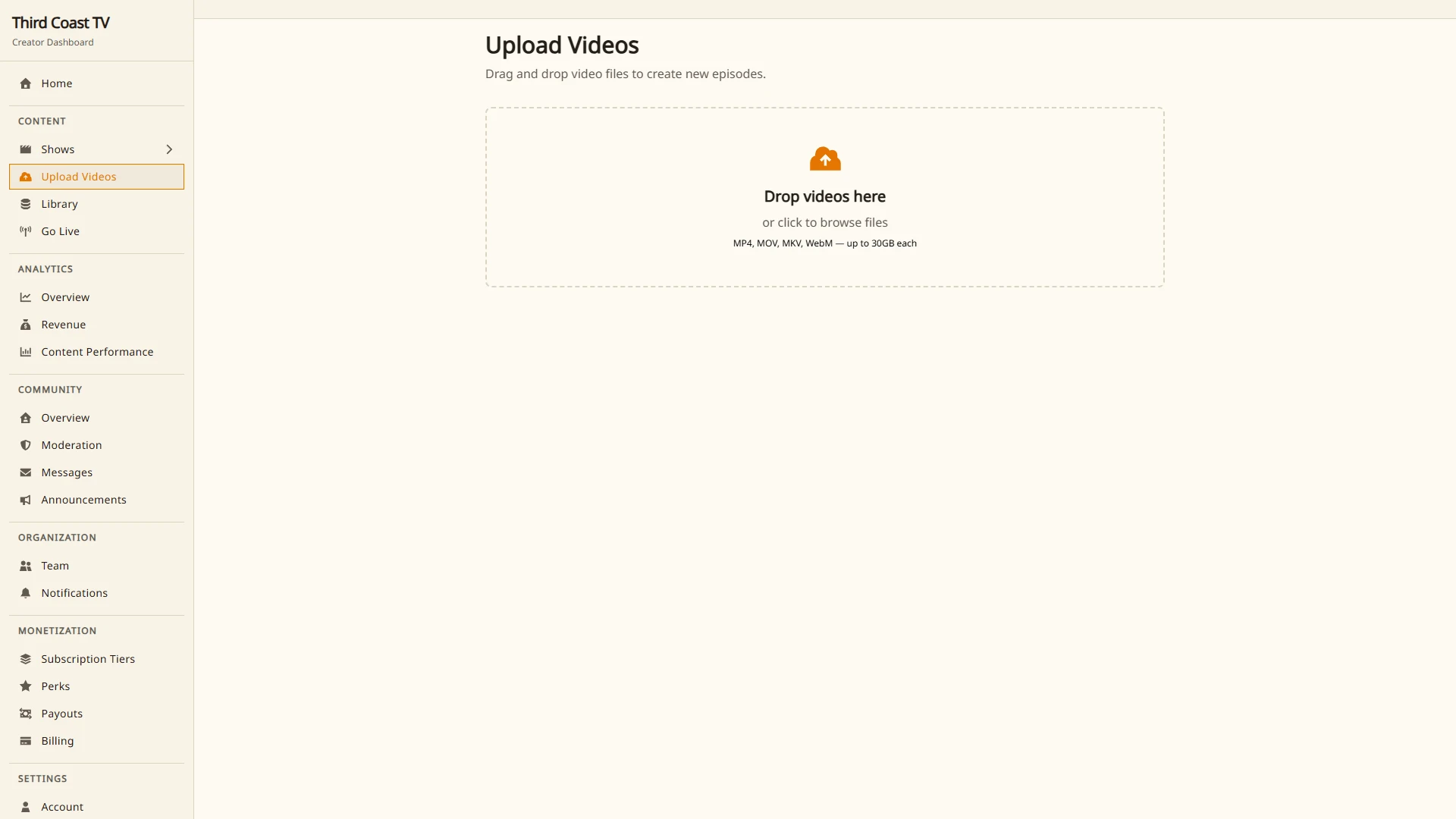
Uploading a pre-recorded video
- Open Content → Upload Videos in the sidebar.
- Choose the show and the episode the video belongs to. You can create a new episode here if you need one.
- Select your video file and start the upload.
Your file uploads directly to our video platform using a resumable upload, so a dropped connection picks up where it left off rather than starting over. After the upload finishes, the video is processed automatically into multiple streaming qualities so it plays smoothly on any connection. Processing usually takes a few minutes depending on length.
The episode links to its video as soon as the upload begins, so you can keep editing the episode’s details while processing finishes in the background.
Preparing your file
For the most reliable processing, export a standard MP4 with H.264 video and AAC audio. Most common formats will work, but an MP4 master is the safest choice. There is no need to compress aggressively; the platform generates its own streaming qualities, so upload the best version you have.
Thumbnails
A thumbnail is the still image viewers see before they press play. To set one, open the episode and choose the moment in the video you want to use. The thumbnail is captured from that point in the video, so pick a frame that represents the episode well.
Your video library
Open Content → Library to see every video file in your organization in one place. The library separates:
- Linked videos. Files attached to an episode.
- Unlinked videos. Files not yet attached to any episode. These most often come from live broadcasts.
From the library you can link an unlinked video to an episode, detach a video from an episode, or delete a file entirely.
Recordings from live streams
When you broadcast live, the stream is recorded and becomes a video file automatically. Most of the time it is attached to the episode you streamed for. If a recording arrives unlinked, you can connect it yourself:
- Open Content → Library.
- Find the unlinked recording.
- Link it to the right episode and broadcast session.
Multiple sessions in one episode
A single episode can include more than one broadcast, for example if a stream dropped and you reconnected, or you ran a multi-part event. Each broadcast is a session. When an episode has several sessions, they play back in order as one continuous episode.
Deleting a video
Deleting a video removes the file from our video platform. This matters for your bill: stored video counts toward your plan’s storage, so deleting files you no longer need keeps storage usage down.
- Detach to keep the file but remove it from an episode.
- Delete to remove the file entirely. This cannot be undone.
You can delete a video from the episode editor or from Content → Library.
Storage and your plan
Each plan includes an amount of storage and delivery, measured in minutes of video. If you go over, overage is billed per minute. You can see your usage under Monetization → Billing, and the allowances for each plan on the Pricing page. Deleting unused recordings is the simplest way to control storage.