Audience: Creators Status: User Guide
Stream overlays are the graphics that sit on top of your live video: an animated background, alerts when someone subscribes or gifts coins, live chat, goal bars, and more. You design them in your control panel, and they appear in OBS as web pages. There is nothing to install and no plugin to keep updated. When you change a setting here, the overlay in OBS updates on its own.
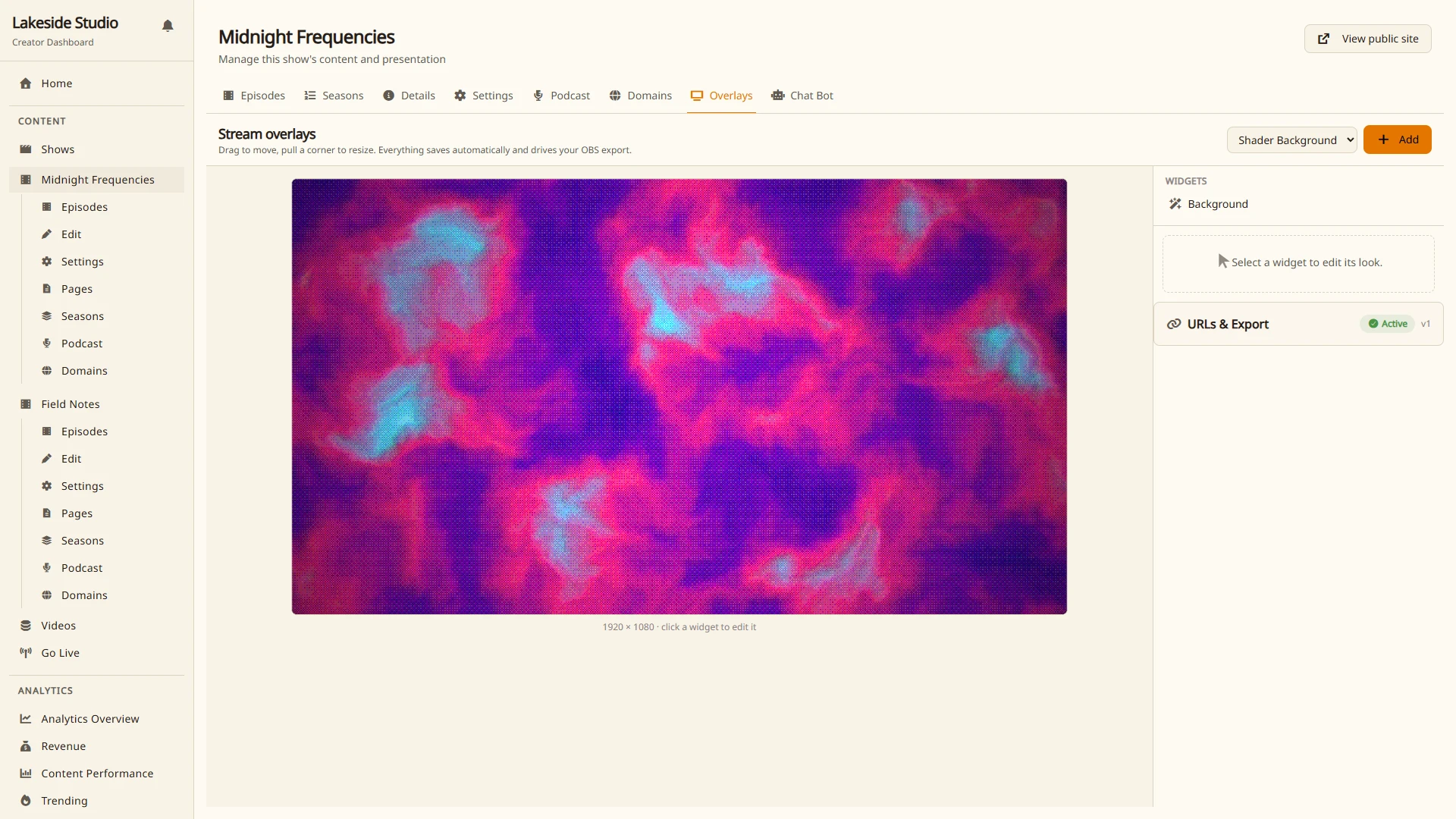
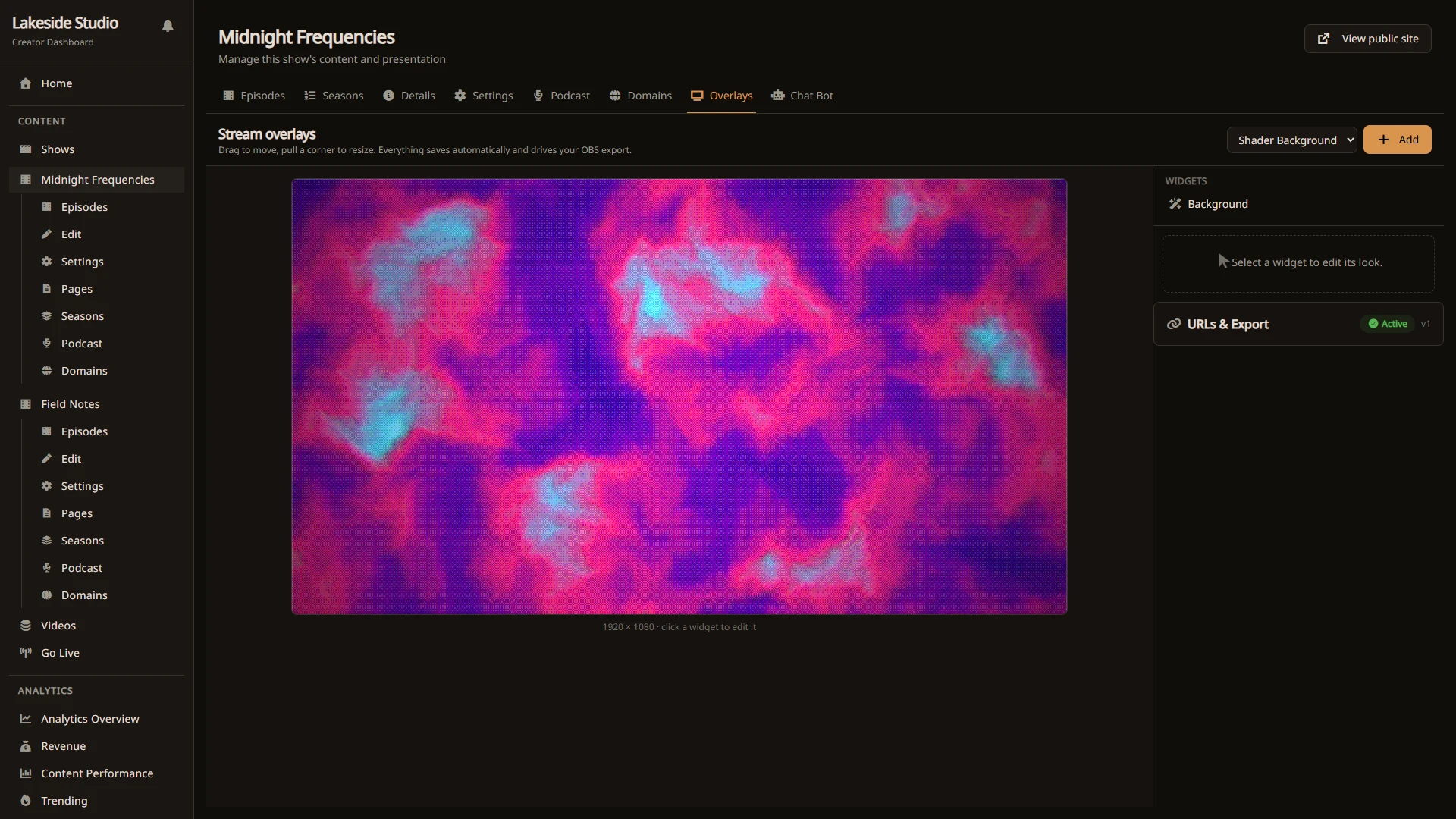
The visual editor
Open Overlays on any show. You get a 1920 by 1080 stage that matches your stream canvas, with an inspector on the right.
- Pick a widget from the Add menu and add it. It appears as a live box on the stage.
- Drag to move, pull a corner to resize. What you see on the stage is what OBS renders.
- Click a widget to open its settings in the inspector. Every change saves automatically and updates the live preview.
The stage shows each widget exactly as OBS will, so you can compose the whole look before you ever open your streaming software.
Two ways to load it into OBS
You can bring your overlays into OBS however suits you:
- One browser source for everything. The Full layout URL renders your entire stack, composited at the positions you set on the stage. Add a single Browser source in OBS, paste the URL, and you are done.
- One source per widget. Each widget also has its own URL, so you can place and layer them using OBS’s own scene mixer.
- One file to import. The Export option gives you a scene-collection file. In OBS, open Scene Collection then Import, choose the file, and every widget arrives as a browser source at the right size and position. No pasting URLs one at a time.
Use the Full layout URL or the export for the fastest setup, or individual URLs when you want to mix overlay pieces with your camera and game capture by hand.
Your overlay URLs are private to your show. If a link is ever exposed, use Reset URLs to roll them, and the old links stop working at once.
Widgets
Shader background
A GPU animated background that loops forever, styled to fit your show. Choose an effect (nebula, plasma, aurora, warp tunnel, orbs, retro grid, swirl, or waves) and a palette (synthwave, vaporwave, acid, ember, ice, gold, magma, mono, rainbow, or a custom hue). Then dial in the look with sliders:
- Dither style: off, ordered, or halftone dots for a crisp retro texture.
- Pixel size and color depth for how chunky the dither reads.
- Chromatic aberration and glow for punch.
- Speed and zoom for motion and framing.
The animation runs on a shared clock, so if you open the same background in several browser tabs and in OBS, they all stay on the same frame. Talk shows and just-chatting streams get a good looking, always moving backdrop with no video files to manage.
Alert box
On-screen alerts for coin gifts, new subscribers, gifted subscriptions, follows, and milestones. Each alert type has its own message template (with {name}, {amount}, {tier}, and {message} placeholders), a minimum amount to trigger it, an on-screen duration, and optional custom sound and image. Pick sounds and images from your show’s asset library right in each alert slot, or upload a new file from the same picker; a small preview plays sounds and shows images before you commit.
- Card styling. Give alerts real structure with a card or banner surface, your own card color, and a stacked or side-by-side layout.
- A queue that never overlaps. Alerts play one at a time. When several arrive together, small dots show how many are waiting, so a busy moment reads as a line of thank-yous, not a pile-up.
- Nothing gets lost. If your overlay reloads or you add a new source mid-stream, it picks up the alert that was on screen plus everything still queued. A supporter’s moment always gets shown.
- Read it aloud. Turn on text to speech to have alerts spoken.
- Test buttons fire a sample of every alert type so you can see the look without waiting for a real event.
Chat, goals, and labels
- Chat shows your live chat, styled for stream, with optional badges and avatars and a fade so old messages clear out.
- Goal bar tracks progress toward a subscriber, revenue, or coin goal.
- Label shows a single live metric with your own prefix and suffix text.
- Live count shows current viewers, chatters, or both.
- Event ticker scrolls a strip of recent stream events.
Colors
Every color field opens a full color picker with live gamut graphs. Drag inside a graph to set lightness, chroma, and hue together, or use the sliders. The picker warns you when a color falls outside what a normal screen can show, so your overlays look the way you intend on your viewers’ displays.
Tips
- Build the whole look on the stage first, then load it into OBS once. The preview matches what OBS renders.
- If you change something and OBS looks stale, right-click the browser source and choose Refresh cache of current page.
- Colors can look more saturated in the OBS preview than in your browser. That is a preview quirk on wide-gamut monitors. What your viewers receive is the standard color your overlay produces.